
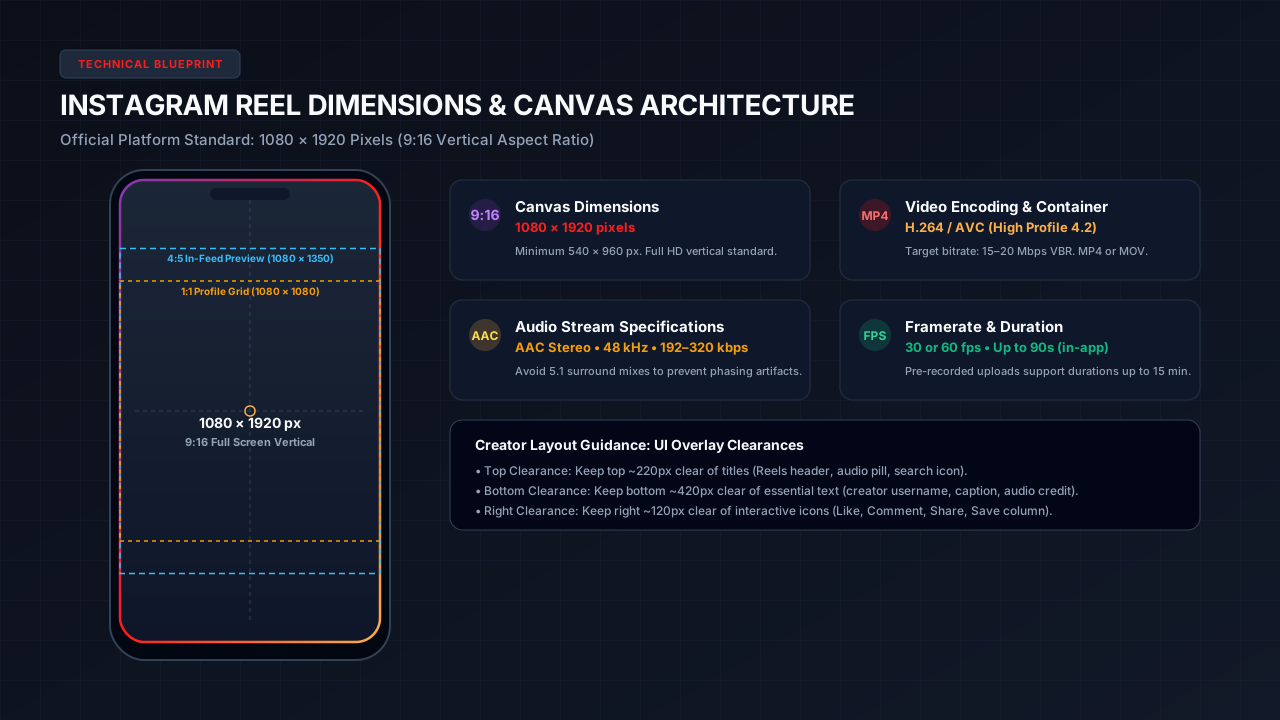
Instagram Reel Specifications at a Glance
Producing high-quality Instagram Reels requires matching Meta's platform ingestion standards while configuring your video editor to avoid aggressive server-side compression. The table below outlines official platform parameters alongside MediaSaverPro creator best practices:
| Parameter | Platform Specification | MediaSaverPro Creator Recommendation | Production Notes |
|---|---|---|---|
| Canvas Dimensions | 1080 × 1920 pixels | 1080 × 1920 px (Full HD) | Standard for crisp mobile rendering |
| Minimum Resolution | 540 × 960 pixels | 1080 × 1920 px | Anything below 540p fails validation |
| Aspect Ratio | 9:16 (Vertical) | 9:16 Vertical exclusively | Full-screen immersive viewing |
| Profile Grid Ratio | 1:1 Square (1080 × 1080) | Center title safe area | Displayed on your profile grid tab |
| Feed Preview Ratio | 4:5 Vertical (1080 × 1350) | Center action safe area | Displayed in followers' home feed |
| Container Format | MP4 or MOV | MP4 (MPEG-4 Part 14) | Maximum cross-platform compatibility |
| Video Codec | H.264 / AVC | H.264 (High Profile 4.2) | Avoid HEVC/H.265 to prevent transcode delay |
| Audio Format | Stereo AAC | AAC Stereo, 48 kHz, 256–320 kbps | 48 kHz prevents sample-rate conversion blur |
| Frame Rates | 24, 30, or 60 fps | 30 fps or 60 fps | 60 fps recommended for gaming or motion |
| Recommended Bitrate | Variable platform compression | 15 Mbps to 20 Mbps VBR | Balances visual detail with upload speed |
| Maximum File Size | 4 GB | Under 250 MB | Keeps mobile uploads reliable and fast |
| Maximum Duration | Up to 15 min (uploaded file) | 15s to 60s for peak retention | In-app camera recordings capped at 90s |
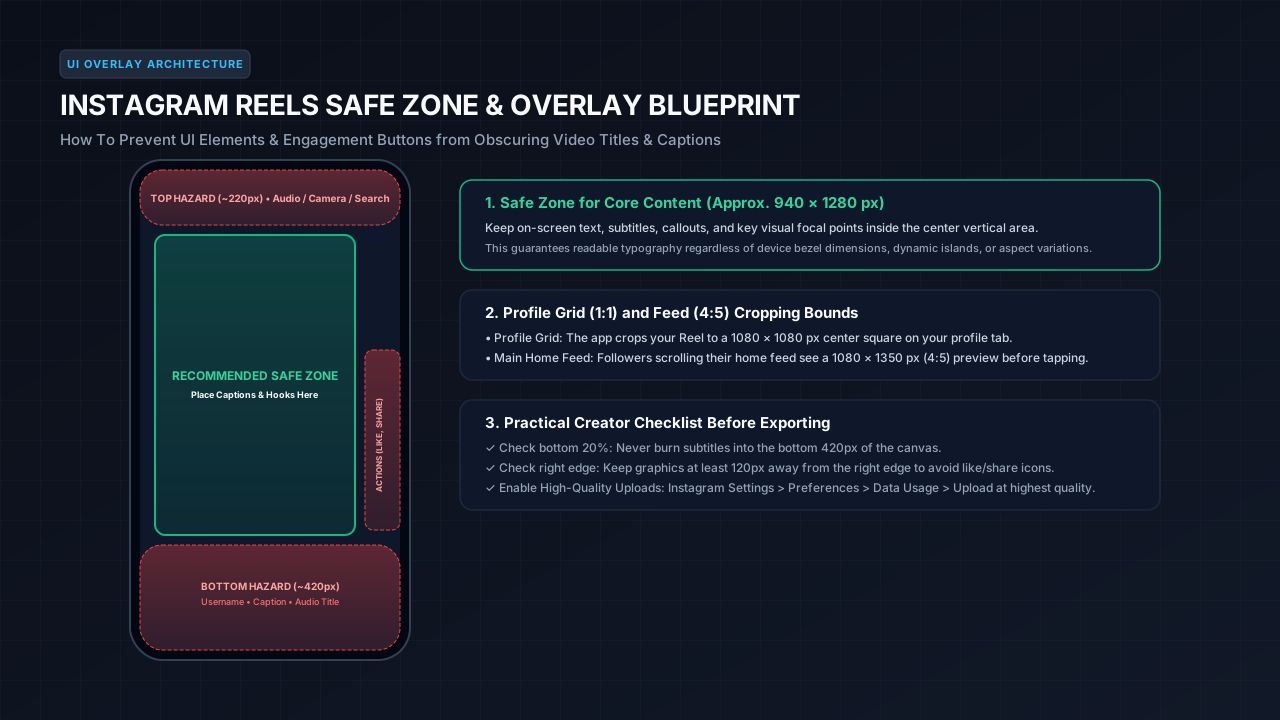
Instagram Reels Safe Zones: Preventing UI & Button Overlaps
One of the most frequent creator mistakes is placing important text, captions, or product branding where Instagram's interactive mobile interface covers them. Unlike a clean video player, an active Reel displays multiple interface overlays:
1. Top Hazard Zone (~220 Pixels)
The top 220 pixels of the canvas contain the Instagram Reel header bar, the audio track pill, and search/camera icons. Keep headlines and main titles at least 220 pixels below the top edge to ensure uninterrupted legibility.
2. Bottom Hazard Zone (~420 Pixels)
The bottom 420 pixels are densely crowded with interface elements:
@username)Actionable Rule: Never burn subtitles, lower-third graphics, or callout buttons into the bottom 420 pixels of the 1080 × 1920 canvas. Place subtitles in the lower-middle portion of your video instead.
3. Right Engagement Rail (~120 Pixels)
The right-hand edge features a vertical stack of interactive engagement buttons:
Keep graphics, logos, and critical video action at least 120 pixels away from the right edge to avoid visual clutter and accidental touch interference.
4. Feed & Profile Grid Safe Areas
Optimal Export Settings for Premiere Pro, DaVinci Resolve & CapCut
To ensure your video arrives at Instagram's servers with the highest possible visual fidelity, configure your timeline and export settings with these parameters:
Adobe Premiere Pro Export Settings
DaVinci Resolve Export Settings
Why Do Instagram Reels Look Blurry After Upload? (And How to Fix It)
If your exported video looks razor-sharp on your computer but appears compressed and pixelated once published to Instagram, three primary causes are usually responsible:
1. In-App Data Saver Compression Is Active
By default, Instagram's mobile app limits upload bandwidth on cellular connections to conserve data. This forces the app to compress your video heavily before uploading.
2. Uploading in 4K Instead of 1080p
While modern smartphones record in 4K (2160 × 3840), Instagram does not stream Reels in 4K resolution. When you upload a 4K file, Instagram's transcoding servers downscale the entire video to 1080p using aggressive automated compression algorithms.
3. Ingest Delay on Meta's CDN
Immediately after publishing a Reel, Instagram serves a low-resolution proxy version to your profile while their servers finish encoding the higher-bitrate 1080p stream across worldwide CDN edges.
Frequently Asked Questions
What is the ideal Instagram Reel aspect ratio?
The standard aspect ratio is 9:16 vertical (1080 pixels wide by 1920 pixels tall). While Instagram supports 1:1 and 4:5 video uploads, 9:16 delivers the most engaging full-screen mobile experience.
What is the maximum resolution for Instagram Reels?
Instagram displays Reels at a maximum resolution of 1080 × 1920 pixels (1080p). Uploading 4K video (2160 × 3840) is accepted by the upload pipeline, but Meta automatically downsamples it to 1080p during processing.
What is the maximum duration for an Instagram Reel?
Reels recorded directly through the in-app Instagram camera are limited to 90 seconds. However, pre-recorded video files uploaded through the gallery or web browser can be up to 15 minutes in length.
What audio format should I use for Instagram Reels?
Use stereo AAC audio at 48 kHz with a bitrate between 192 kbps and 320 kbps. Setting your audio sample rate to 48 kHz matches video standard standards and prevents sample-rate distortion.
How do I stop the Reel description from covering my video text?
Keep all titles, subtitles, and captions positioned inside the central 940 × 1280 pixel safe zone. Maintain at least a 420-pixel clearance from the bottom edge to keep your text clear of the creator username and caption overlay.
Can I test or inspect public Reels to check their technical resolution?
Yes. You can paste any public Instagram link into the MediaSaverPro Instagram Downloader to inspect available MP4 video streams, verify audio tracks, check dimensions, and download public media directly in your browser.
Inspect and Optimize Public Instagram Media
Understanding technical media parameters helps you format, edit, and publish vertical video that retains maximum clarity. Whether you are benchmarking engagement safe zones, archiving your own published content, or inspecting stream codecs on public posts, MediaSaverPro provides fast, browser-based inspection tools.
Try our Instagram Downloader to analyze public Instagram Reels, standard video posts, photos, and carousels in verified MP4 and JPG formats. You can also explore our complete library of Creator Guides & Media Tutorials, including our in-depth guide on TikTok Video Dimensions & Safe Zones.