
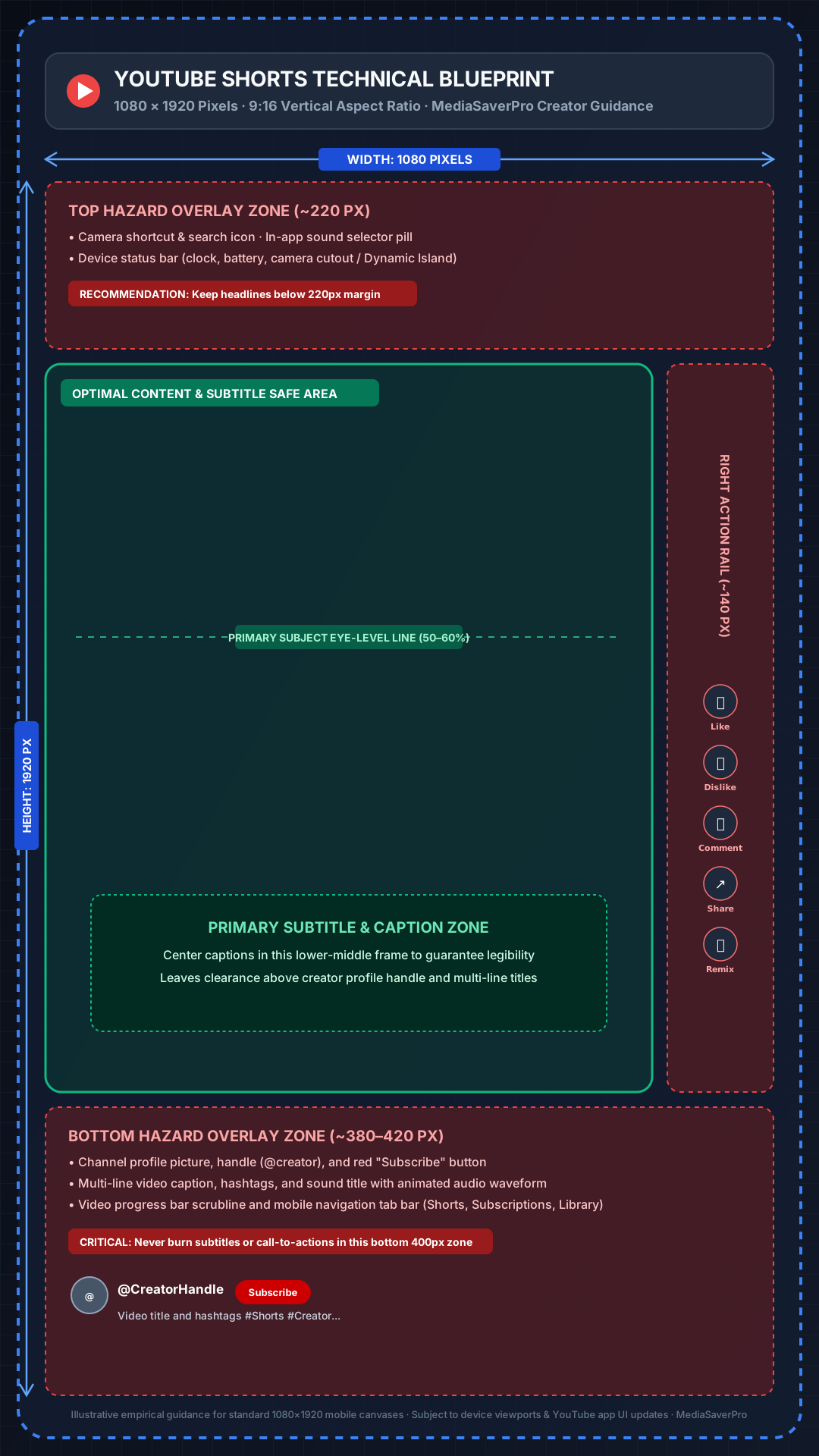
1. YouTube Shorts Technical Specifications at a Glance
Producing professional YouTube Shorts requires aligning your editing timeline with YouTube's ingestion standards while understanding how YouTube's transcode engine processes vertical video. The table below distinguishes official platform requirements from MediaSaverPro recommended creator practices:
| Parameter | Platform Specification | Classification | MediaSaverPro Creator Guidance |
|---|---|---|---|
| Canvas Dimensions | 1080 × 1920 pixels | OFFICIAL PLATFORM REQUIREMENT | Standard 1080p Full HD vertical resolution |
| Minimum Resolution | 720 × 1280 pixels | OFFICIAL PLATFORM REQUIREMENT | Absolute minimum width accepted for Shorts |
| Aspect Ratio | 9:16 (Vertical) | OFFICIAL PLATFORM REQUIREMENT | Full-screen vertical; 1:1 square accepted but letterboxed |
| Duration Limit (In-App) | Up to 60 seconds | OFFICIAL PLATFORM REQUIREMENT | In-app Shorts recording camera ceiling |
| Duration Limit (Upload) | Up to 3 minutes (180s) | OFFICIAL PLATFORM REQUIREMENT | Pre-edited files uploaded via Studio or mobile gallery |
| Container Format | MP4 or MOV | OFFICIAL PLATFORM REQUIREMENT | MP4 recommended for fastest processing |
| Video Codec | H.264 / AVC, VP9, AV1 | OFFICIAL PLATFORM REQUIREMENT | H.264 High Profile 4.2 avoids transcode delays |
| Audio Format | Stereo AAC | OFFICIAL PLATFORM REQUIREMENT | AAC Stereo, 48 kHz, 192–320 kbps |
| Supported Frame Rates | 24, 25, 30, 50, 60 fps | OFFICIAL PLATFORM REQUIREMENT | 30 fps or 60 fps matching camera source |
| Target Bitrate | Variable platform compression | RECOMMENDED CREATOR PRACTICE | 16–20 Mbps VBR (60fps) / 12–16 Mbps (30fps) |
| Maximum File Size | Up to 256 GB (Desktop) | OFFICIAL PLATFORM REQUIREMENT | Standard YouTube upload limits apply |
| Central Safe Zone | ~920 × 1260 pixels | EMPIRICAL CREATOR GUIDANCE | Protects text from mobile UI overlays |
2. Understanding the 9:16 Vertical Canvas
YouTube Shorts was engineered specifically for mobile-first consumption. Unlike traditional horizontal 16:9 YouTube videos designed for widescreen monitors and television screens, Shorts fill the entire vertical viewport of smartphones.
When you upload a horizontal video (16:9) or square video (1:1) with a duration under 3 minutes, YouTube will still ingest it into the Shorts player if tagged or formatted accordingly. However, horizontal videos suffer from severe pillarboxing—YouTube places thick black bars above and below the video, shrinking the footage to a small window in the center of the mobile screen. This dramatically reduces viewer immersion, hook retention, and click-through rates.
3 Strategies for Repurposing 16:9 Footage for 9:16 Shorts
Creators with existing YouTube catalogs or podcast recordings can effectively convert widescreen 16:9 footage into high-retention 9:16 Shorts using one of three industry techniques:
If you are cross-posting short-form content across multiple platforms, compare YouTube's canvas requirements with our companion TikTok Video Dimensions & Safe Zones Guide and Instagram Reel Dimensions & Safe Zones Guide.
3. YouTube Shorts UI Safe Zones: Practical Creator Layout Guidance
One of the most frequent technical mistakes creators make is positioning titles, key captions, or call-to-action arrows where the YouTube Shorts mobile interface covers them. Unlike a clean desktop player, the active mobile Shorts player superimposes several interactive buttons and metadata overlays directly over the video stream.
1. Top Hazard Zone (~220 Pixels Approximate Guidance)
The top ~220 pixels of the canvas display the device status bar (clock, cellular reception, battery percentage), the search icon, the in-app camera shortcut, and the audio sound link pill. Keep primary headlines, teasers, and main title text at least 220 pixels below the top edge to ensure uninterrupted legibility across varying status bar heights.
2. Bottom Hazard Zone (~380–420 Pixels Approximate Guidance)
The bottom ~420 pixels are densely covered with interactive interface elements:
@channelname)Practical Creator Rule: Never burn subtitles, lower-third names, or promotional URLs into the bottom ~420 pixels of the 1080 × 1920 canvas. Position on-screen subtitles in the lower-middle portion of your video (between 1100px and 1400px from the top edge).
3. Right Engagement Rail (~140 Pixels Approximate Guidance)
The right-hand side of the screen features a vertical stack of interactive engagement icons:
Keep graphics, branding logos, and critical action at least 140 pixels away from the right edge to avoid visual clutter and accidental touch interference.
4. Recommended Central Safe Area (~920 × 1260 Pixels)
Subtracting the approximate top (~220px), bottom (~420px), and right (~140px) overlay margins leaves a central ~920 × 1260 pixel safe area. Placing all critical text, callouts, and key subject framing within this zone ensures that your content remains legible on virtually any mobile device.
4. YouTube Shorts Duration Limits: 60 Seconds vs. 3 Minutes Explained
For years, YouTube Shorts enforced a strict 60-second duration ceiling. In late 2024, YouTube rolled out a major platform update that extended the maximum duration for Shorts up to 3 minutes (180 seconds). This update is fully active in 2026, but creators must understand the nuances of how YouTube treats different upload pathways:
In-App Mobile Camera: Capped at 60 Seconds
When recording video directly within the YouTube mobile app using the Shorts camera tool, recording segments are limited to either 15 seconds or 60 seconds. If you want to publish a Short longer than 60 seconds, you must record and edit the video in external software (Premiere Pro, Final Cut Pro, DaVinci Resolve, or CapCut) and upload the rendered video file.
Studio and Desktop Uploads: Up to 3 Minutes (180 Seconds)
Pre-edited videos uploaded through YouTube Studio on desktop, the YouTube Studio mobile app, or the standard YouTube mobile app upload picker with an aspect ratio of square (1:1) or taller (9:16) and a duration of 3 minutes (180 seconds) or less are automatically classified as Shorts. They enter the vertical Shorts recommendation feed, feature the Shorts UI player, and receive algorithmic distribution tailored for short-form video.
Music Licensing Constraints
When using licensed commercial songs from YouTube's in-app Audio Library, some copyright agreements restrict track usage to 60 seconds or less. If your Short is between 61 and 180 seconds, use original audio, copyright-cleared production music, or sound effects to avoid automatic muting or copyright restrictions.
5. Custom Thumbnails on YouTube Shorts: Mobile vs. Desktop
Custom cover images play an essential role when viewers discover your content through YouTube Search results, channel video tabs, and subscriber feeds.
Mobile Upload Frame Selection
When uploading a Short through the YouTube mobile app, tap the pencil icon located in the upper-left corner of the video preview before publishing. You can scrub through the video timeline to select the most visually engaging frame as your display thumbnail. Once published via mobile, this frame cannot be changed through the mobile app.
Desktop YouTube Studio Custom Image Upload
If you manage your channel through desktop YouTube Studio, you can upload a dedicated custom thumbnail image just as you would for standard long-form videos.
To inspect, evaluate, or extract high-resolution cover artwork from published Shorts in your niche for design benchmarking, use our free YouTube Video Downloader & Creator Tools.
6. Recommended Export Settings for Premiere Pro, DaVinci Resolve & CapCut
*Classification: RECOMMENDED CREATOR PRACTICE*
To ensure your vertical master file retains maximum visual clarity through YouTube's re-encoding pipeline, configure your editing software with these production-tested parameters:
Adobe Premiere Pro Export Settings
DaVinci Resolve Export Settings
CapCut (Desktop & Mobile) Export Settings
7. How to Prevent Blurry Compression on YouTube Shorts
If your exported video looks sharp on your computer but appears soft or pixelated once uploaded to YouTube Shorts, three technical factors are typically responsible:
1. Ingestion Downscaling: Uploading 4K vs. 1080p
While modern smartphones can record 4K vertical video (2160 × 3840), YouTube serves Shorts to mobile viewports at 1080p maximum. When you upload a 4K file, YouTube's backend transcoders downscale the video. In many cases, downscaling your timeline to 1080 × 1920 directly in professional editing software produces cleaner results because desktop software utilizes superior bicubic downsampling algorithms compared to high-throughput cloud transcoders.
2. Codec Allocation: AVC (H.264) vs. VP9 vs. AV1
YouTube assigns codecs dynamically based on video popularity and upload resolution:
3. Edge CDN Propagation Delay
Immediately after uploading a Short, YouTube often serves a lower-resolution preview encode while high-definition 1080p transcodes finish rendering and caching across global edge servers. Wait 10 to 15 minutes after publishing before judging playback clarity on mobile devices.
8. Practical Creator Production Checklist
Before tapping publish on your next YouTube Short, verify your project against this pre-flight checklist:
9. Frequently Asked Questions
What are the official dimensions for YouTube Shorts?
The standard dimensions for YouTube Shorts are 1080 × 1920 pixels, representing a vertical 9:16 aspect ratio. The minimum resolution accepted by YouTube is 720 × 1280 pixels.
Can YouTube Shorts be 3 minutes long in 2026?
Yes. Under YouTube's expanded Shorts policy, pre-edited videos uploaded via YouTube Studio or desktop that are square (1:1) or vertical (9:16) and up to 3 minutes (180 seconds) in duration are automatically categorized as Shorts. In-app camera recordings remain capped at 60 seconds.
What is the best aspect ratio for YouTube Shorts?
The best aspect ratio is 9:16 vertical. While YouTube accepts 1:1 square video, vertical 9:16 delivers the standard full-screen mobile experience and avoids black pillarbox bars.
Why does my YouTube Short look blurry on mobile?
Blurriness usually results from YouTube's edge transcoders still processing the high-definition stream, uploading footage with aggressive bitrate compression, or placing text outside the central safe area. Exporting a 1080 × 1920 file at 16–20 Mbps VBR resolves most clarity issues.
Can I upload 4K video to YouTube Shorts?
Yes, YouTube accepts 4K vertical uploads (2160 × 3840). However, YouTube will transcode and serve the video at 1080p on mobile devices. Exporting a high-bitrate 1080p master from your desktop video editor is often faster and yields cleaner results.
How can I inspect the technical stream parameters of a published YouTube Short?
You can enter any public YouTube video or Short link into our YouTube Video Downloader & Shorts Tool to inspect available stream resolutions, examine audio formats, verify container codecs, and download public media directly in your browser.
10. Inspect and Optimize Public YouTube Media
Understanding precise video dimensions, aspect ratios, and interface safe zones allows creators to design and publish content that captures maximum viewer retention. Whether you are archiving your own published channel content, benchmarking UI overlays, or inspecting stream codecs on public videos, MediaSaverPro provides fast, browser-based inspection tools.
Try our YouTube Video Downloader & Shorts Tool to analyze public video streams, check available MP4 resolutions, and inspect audio tracks. If you are designing custom video cover art, check out our YouTube Video Downloader & Creator Tools alongside our companion guides on YouTube Thumbnail Size & Dimensions and YouTube Thumbnail SEO & CTR Best Practices.