
YouTube Thumbnail Technical Specifications
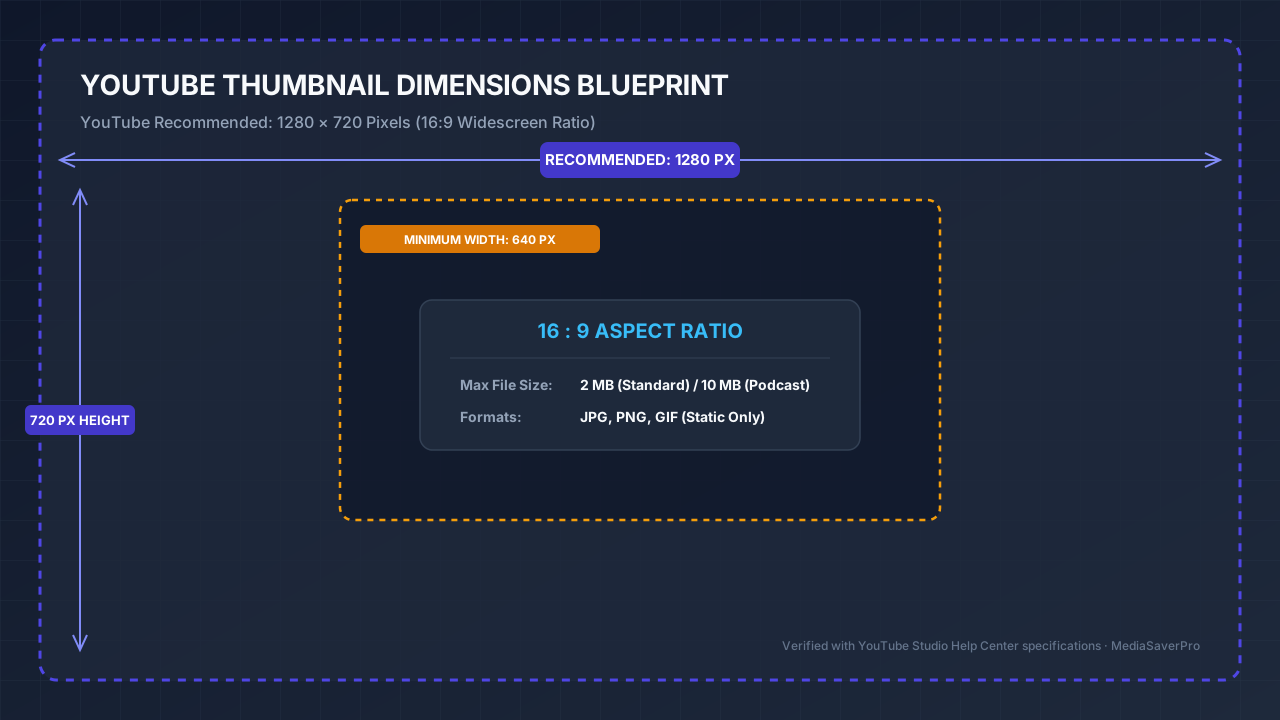
To ensure custom video thumbnails display cleanly across modern high-DPI smartphone screens, desktop browsers, and 4K smart TVs, YouTube enforces specific technical parameters. Meeting these requirements prevents upload rejections, blurry downscaling, and awkward letterboxing.
Recommended Dimensions & Resolution: 1280 × 720 Pixels
According to YouTube Help documentation, creators should export custom thumbnails at 1280 pixels wide by 720 pixels high (720p HD). While you can upload higher-resolution 16:9 images such as 1920 × 1080 (Full HD) provided they stay under the file size cap, YouTube compresses and generates fixed preview assets across its Content Delivery Network (CDN). Exporting at 1280 × 720 provides optimal sharpness without exceeding file size limits.
Minimum Required Width: 640 Pixels
YouTube sets an absolute minimum width threshold of 640 pixels (640 × 360 pixels in 16:9). Images smaller than 640px wide will either fail upload validation in YouTube Studio or suffer severe distortion, stretching, and pixelation when scaled up on larger desktop monitors.
Aspect Ratio: 16:9 Standard
Standard YouTube video players and search feeds operate on a 16:9 aspect ratio. If you upload an image with a 4:3 (traditional photo), 1:1 (square), or 9:16 (vertical) ratio for a standard video, YouTube automatically adds black bars (pillarboxing or letterboxing) to the sides of your image to force it into a 16:9 container.
Maximum File Size Limit: 2MB vs. 10MB
For standard video uploads, your custom thumbnail image must remain strictly under 2 MB. YouTube Studio will reject any image file that exceeds 2,097,152 bytes.
*Note for Podcast Creators:* If you upload audio podcast episodes or podcast playlist covers to YouTube, the platform permits a larger maximum file size of 10 MB via mobile apps and up to 50 MB via desktop YouTube Studio, with a square 1:1 aspect ratio (recommended 1280 × 1280 pixels).
Supported Image Formats: JPG, PNG, GIF, and WebP
According to YouTube Help documentation, supported image formats are:
Account Requirement: Intermediate Features Verification
Custom thumbnail uploads are not enabled by default on brand-new channels. YouTube requires creators to unlock Intermediate Features by verifying a phone number via SMS or voice call in YouTube Studio > Settings > Channel > Feature Eligibility. Unverified channels can only select one of three automatically generated frame captures from the uploaded video.
Complete YouTube Thumbnail Specifications Table
The following comparison details YouTube platform requirements alongside MediaSaverPro creator best practices:
| Parameter | YouTube Documentation Standard | Platform Constraint | MediaSaverPro Creator Advice |
|---|---|---|---|
| **Recommended Dimensions** | **1280 × 720 pixels** | Standard for high quality | Ideal balance of sharpness and file size |
| **Minimum Resolution** | **640 × 360 pixels** | Minimum width is 640px | Never upload below 1280×720 to prevent blur |
| **Aspect Ratio** | **16:9** | Standard video container | Avoid 4:3 or square images to prevent black bars |
| **Maximum File Size** | **2 MB** (Standard Videos) | Strict upload validation cap | Target 1.2MB–1.8MB for high-bitrate PNG/JPG |
| **Podcast Thumbnail Size** | **1280 × 1280 pixels** | 1:1 square ratio, up to 10MB/50MB | Use clean, centered podcast show artwork |
| **Accepted Formats** | **JPG, PNG, GIF** | GIF renders static (no animation) | Use PNG for text-heavy art, JPG for portraits |
| **Color Profile** | **sRGB** | Browser standard | Export in sRGB; CMYK causes color distortion |
| **Account Tier** | **Intermediate Features** | Phone number verification | Complete SMS verification before launch |
YouTube Thumbnail Layout & Safe Zones: Avoiding Mobile and UI Overlays
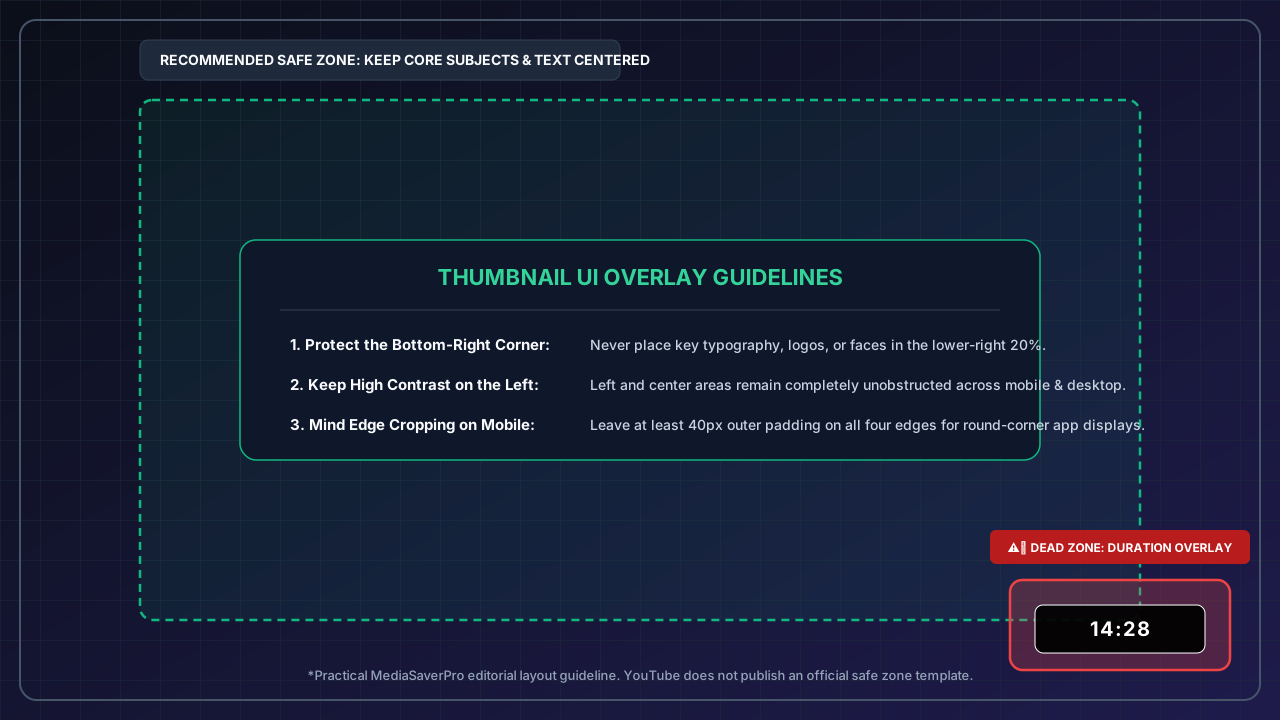
YouTube does not publish an official safe-zone template for standard video thumbnails (unlike channel banners, which feature strict safe-zone specs). However, video player and app overlays create functional dead zones that creators should anticipate.
The Bottom-Right Timestamp Dead Zone
The single biggest layout mistake creators make is placing essential titles, logos, or emotional faces in the lower-right corner.
On mobile, desktop, and TV apps, YouTube superimposes the video duration badge (e.g., 12:45 or 1:04:12) directly over the bottom-right corner of the thumbnail. This overlay covers a noticeable portion of the lower-right area across desktop and mobile feeds.
*MediaSaverPro Design Rule:* Keep the bottom-right 20% of your canvas completely free of focal text, badges, punchlines, or critical facial expressions.
Mobile Edge Cropping and Screen Variations
Modern mobile apps round the corners of video cards and occasionally crop 10–15 pixels along outer margins depending on device screen density.
The Central Safe Area (MediaSaverPro Practical Guideline)
To guarantee your thumbnail renders with complete visual integrity across every screen size:
Mobile vs. Desktop Display Scaling: The 10% Zoom Test
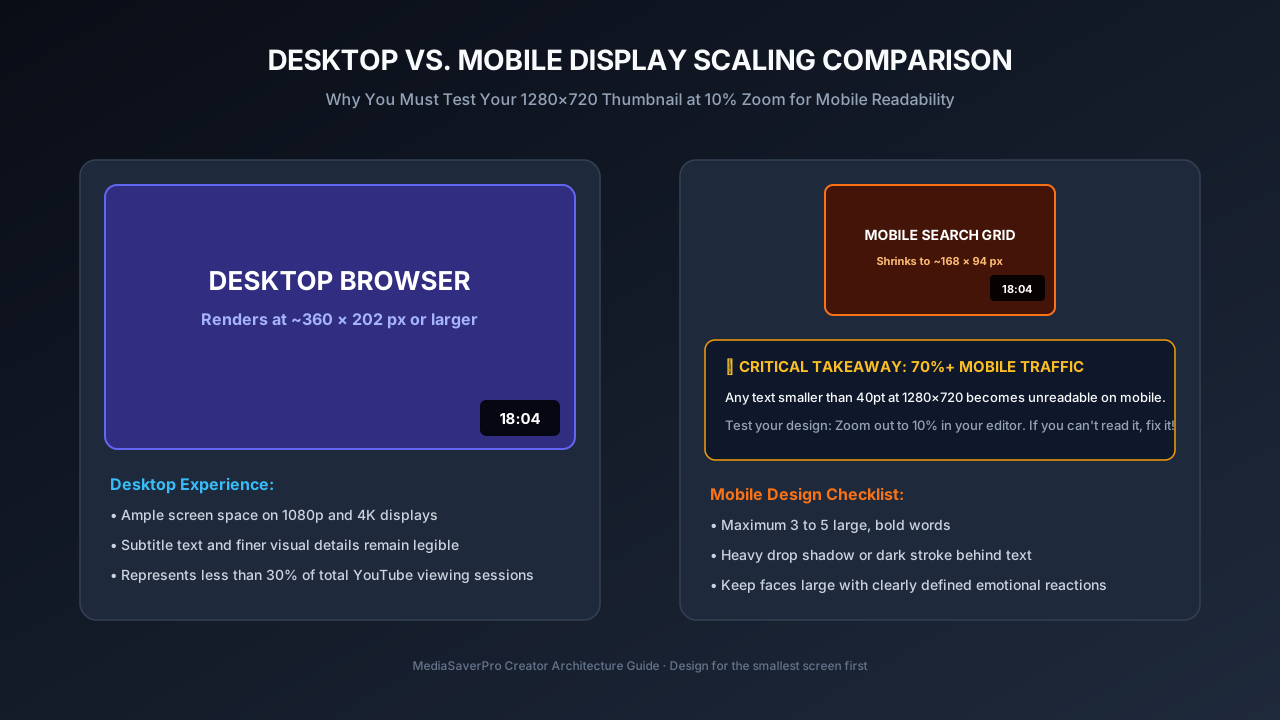
Over 70% of YouTube viewing sessions occur on mobile devices, smart TVs, or game consoles. A thumbnail designed on a 27-inch 4K computer monitor looks drastically different when scaled down to a 6.1-inch smartphone display.
How YouTube Scales Thumbnails Across Feeds
MediaSaverPro Editorial Advice: The 10% Zoom Test
Before finalizing any cover graphic, zoom out to 10% to 15% scale in your image editor (Photoshop, Canva, Figma, or GIMP). At this thumbnail preview size, assess:
If any text requires squinting or concentration, enlarge the font size, increase background contrast, or eliminate secondary words.
High-CTR Design Principles (Editorial Guidance)
A technically compliant 1280×720 image will upload without errors, but high click-through rates (CTR) require deliberate visual hierarchy:
1. High Contrast & Subject Isolation
Use complementary colors that stand out in YouTube's predominantly white (light mode) or charcoal black (dark mode) interfaces. Vibrant yellows, oranges, and cyan contrast sharply against dark themes. Adding a subtle drop shadow or dark stroke behind foreground subjects creates clean depth.
2. The 3-to-5 Word Text Guideline
Never repeat your video's title inside the thumbnail. Viewers read the thumbnail first and the video title second. Use 3 to 5 punchy words that tease curiosity, state an emotional reaction, or pose an unanswered question.
3. Facial Framing and Off-Center Placement
Close-up portraits featuring expressive eyes and genuine emotional reactions consistently generate higher viewer engagement. Position faces on the left or center of the canvas—never in the lower right where the duration badge sits.
Common Thumbnail Upload Errors and How to Fix Them
"File is bigger than 2MB"
"Image has incorrect aspect ratio"
"Colors look washed out or dull after upload"
"Custom thumbnails option is disabled or greyed out"
Thumbnail vs. Banner vs. Shorts: Key Dimension Differences
Creators frequently confuse YouTube's various visual assets. Here is how video thumbnails compare to other channel graphics:
| Asset Type | Recommended Dimensions | Aspect Ratio | Primary Purpose |
|---|---|---|---|
| **Video Thumbnail** | **1280 × 720 px** | **16:9** | Video search and feed preview |
| **Channel Banner** | **2560 × 1440 px** | **16:9 (1235×338 Safe Zone)** | Channel header artwork across TV/Desktop/Mobile |
| **YouTube Shorts** | **1080 × 1920 px** | **9:16** | Full-screen vertical video feed |
| **Community Post Image** | **1080 × 1080 px** | **1:1 or 16:9** | Channel community tab updates |
| **Podcast Cover Art** | **1280 × 1280 px** | **1:1** | YouTube Music and podcast catalog |
Inspecting and Analyzing High-Resolution Thumbnails
When designing new cover art, studying how top creators in your niche structure their visual hierarchy is one of the fastest ways to improve performance.
MediaSaverPro provides a free, ToS-compliant creator suite designed for metadata analysis. When you enter a public YouTube video link into our YouTube Creator Tools, the tool inspects public media metadata and retrieves the highest resolution image provided by YouTube's Content Delivery Network. For modern videos where the creator uploaded a high-definition custom thumbnail, this includes the full 1280×720 MaxRes file (maxresdefault.jpg). For older videos, standard definition uploads, or videos where no custom MaxRes image was uploaded, YouTube only serves lower resolution previews such as High-Quality (hqdefault.jpg at 480×360) or Standard Definition (sddefault.jpg at 640×480).
Frequently Asked Questions About YouTube Thumbnail Dimensions
Can I use a 1920x1080 image for my YouTube thumbnail?
Yes. 1920 × 1080 uses the exact same 16:9 aspect ratio as 1280 × 720. As long as your exported image stays under the 2MB limit, YouTube Studio will accept it. However, because YouTube automatically scales down thumbnails across search grids and feeds, 1080p images offer no visible quality advantage over a well-optimized 1280 × 720 file.
Why is my YouTube thumbnail blurry after uploading?
Blurriness usually occurs when uploading images below the 640px minimum width, exporting in low-quality compression, or uploading non-16:9 images that force YouTube to interpolate and pad the canvas. Exporting a sharp 1280 × 720 PNG or high-bitrate JPG solves this issue.
Can I upload an animated GIF as a YouTube thumbnail?
No. While YouTube's upload dialogue accepts .gif files, it extracts and displays only the first frame as a static picture. Animated thumbnails are not supported for standard YouTube video uploads. Animated GIFs are supported only on YouTube Community tab posts.
Does YouTube support WebP format for thumbnails?
WebP files are often accepted by desktop web browsers uploading to YouTube Studio. However, exporting as standard JPG or PNG remains the safest approach to guarantee complete compatibility across all studio apps and third-party publishing tools, as JPG and PNG are the formats officially specified in YouTube Help documentation.
What is the minimum thumbnail width allowed by YouTube?
According to YouTube Help documentation, the minimum thumbnail width is 640 pixels. Any image uploaded with a width under 640px will be rejected or downscaled.
Where should I place text on my YouTube thumbnail?
Place primary text on the left or upper-center of your 1280 × 720 canvas. Keep important text and visual elements away from the lower-right corner, where YouTube places the video duration badge across mobile and desktop feeds.
Sourcing and Standards Reference
The technical requirements cited in this guide reflect the standards maintained in the Google YouTube Help Center under *Add video thumbnails in YouTube Studio*. Layout recommendations, the 10% zoom test, and safe zone boundaries are practical editorial guidelines developed by MediaSaverPro to assist creators with mobile optimization.